

Drafting WizardLegal documents drafting AI Tool
Your AI assistant for miscellaneous drafting needs.
Legal documents draftingFree + from $50/mo0
Your AI assistant for miscellaneous drafting needs.
Overall
Average of 2 data signals below
Basic pricing published
3 of 4 content areas filled (features, FAQs, pros/cons, description)
This score is calculated automatically from this listing's available data (community rating, capabilities, pricing transparency, and documentation). It is not a paid or sponsored review.
Pricing & Model
freemium
Free + from $50/mo
Open Source & API
Proprietary
No Public API
Foundational Model
Proprietary Engine
Key Integrations
Web App Only
Free + from $50/mo
See full pricing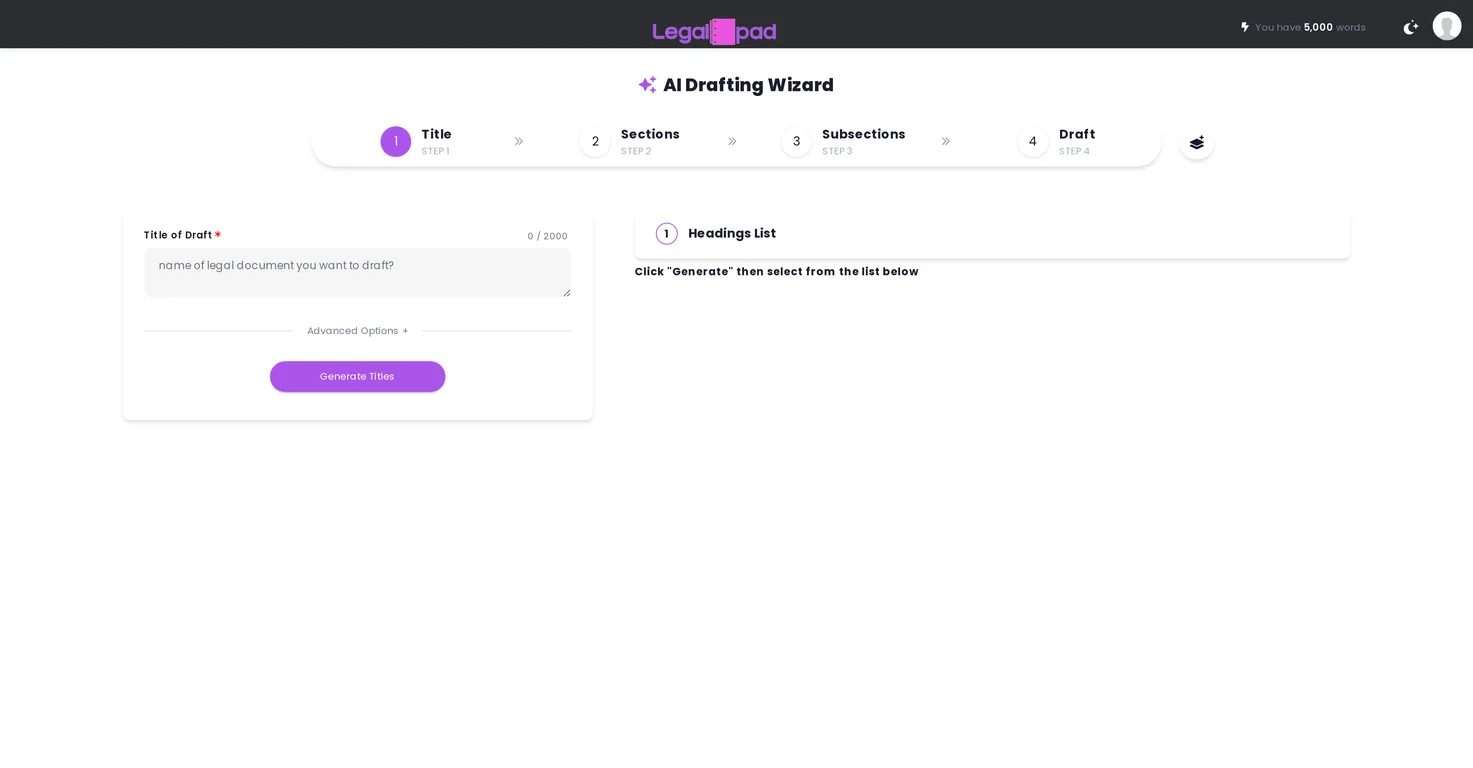
Common queries about Drafting Wizard answered
The Drafting Wizard is a feature of LegalPad.ai that facilitates the creation of legal drafts. It offers a step-by-step process, helping to simplify and streamline the drafting process while organized and assisting users in accomplishing diverse drafting tasks.
The Drafting Wizard generates a legal draft by guiding the user through a sequential set of steps: setting the draft title, defining sections, setting up subsections, and ultimately generating the initial draft that users can further customize.
Real ratings and feedback from the community
Be the first to share your rating and comments for this AI tool!
How Drafting Wizard stacks up against top competitors
| Feature | Drafting Wizard | Spellbook | CreateDraft | Fliki |
|---|---|---|---|---|
| Rating | ★ 3 | — | — | ★ 4.8 |
| Visits / month | — | — | — | 692,189 |
| Pricing Model | freemium | freemium | free_trial | freemium |
| API Access | No | No | No | No |
| Open Source | No | No | No | No |
| Link | Visit Website |
Explore similar AI tools in this category

Improve legal document drafting and boost productivity.
The main steps in the drafting process with the Drafting Wizard are: establishing the draft title, outlining sections, creating subsections and the generation of the draft. All these steps follow each other in a sequential manner to ensure a structured approach to make the drafting process manageable.
Yes, you can adjust the length of the draft created by the Drafting Wizard. It contains advanced options, permitting users to calibrate the length of the draft to their preference.
The Drafting Wizard provides advanced options such as adjustment of the draft length and rearrangement of described sections. Users have the option to change these settings according to their drafting needs.
New sections in a legal draft created using the Drafting Wizard can be added by using the drag-and-drop feature. This feature simplifies the process of adding and organizing sections within the draft.
Yes, the Drafting Wizard can be used for drafting tasks in multiple languages. LegalPad.ai supports a wide range of languages to cater to the global needs of their users.
The Drafting Wizard supports a substantial list of jurisdictions, encompassing a majority of countries globally. From Afghanistan to Zimbabwe; the platform ensures a broad range of legal jurisdictions are covered.
Yes, you can edit the legal draft once it's been generated by the Drafting Wizard. LegalPad.ai allows for further refinement and personalization of the generated draft.
The image generation feature is disabled in the Drafting Wizard. While the exact reason isn't specified, this could be due to the focus on text-related functionalities as a priority for drafting tasks.
Yes, there is a word limit when drafting with the Drafting Wizard, which is set at 5,000 words a day.
You can set the title of a draft using the Drafting Wizard during the first step of the drafting process. The system allows users to define their own draft title as per their need.
Yes, rearranging sections in a legal draft is possible with the Drafting Wizard. Users can simply drag and drop sections to rearrange the structure to their liking.
Jurisdiction selection in the Drafting Wizard is a dropdown feature. You choose from a comprehensive list of international jurisdictions, allowing you to adapt the draft to specific legal jurisdictions.
The Drafting Wizard supports a wide range of languages to meet diverse user needs. This includes languages from Albanian to Welsh, encompassing major languages globally such as English, Spanish, Chinese, and more.
Customizing the subsections in a draft is part of the drafting procedure using the Drafting Wizard. Users can state the number of subsections per section during the structured step-by-step process.
The 'Bare Bones Draft' and 'Expanded & Detailed' options available in the Drafting Wizard provide users control over the amount of detail in their draft. Depending on their needs, users can opt for a succinct or a thorough approach.
In the Drafting Wizard, users can choose to skip particular steps in the process if they find them unnecessary. This feature allows for a more flexible and user-friendly drafting process.
When draft generation is stopped, the drafting process is halted and users can then edit the current state of their draft.
Users can employ the Smart Editor with drafts created by the Drafting Wizard by selecting the 'Open in Smart Editor' option after their draft has been generated. This allows for further customization and editing of the generated legal draft.
| Visit Website |
| Visit Website |
| Visit Website |
Compare Fliki's free and paid tiers to see how this text-to-video AI tool simplifies social media, blog-to-video, and content marketing production.


